
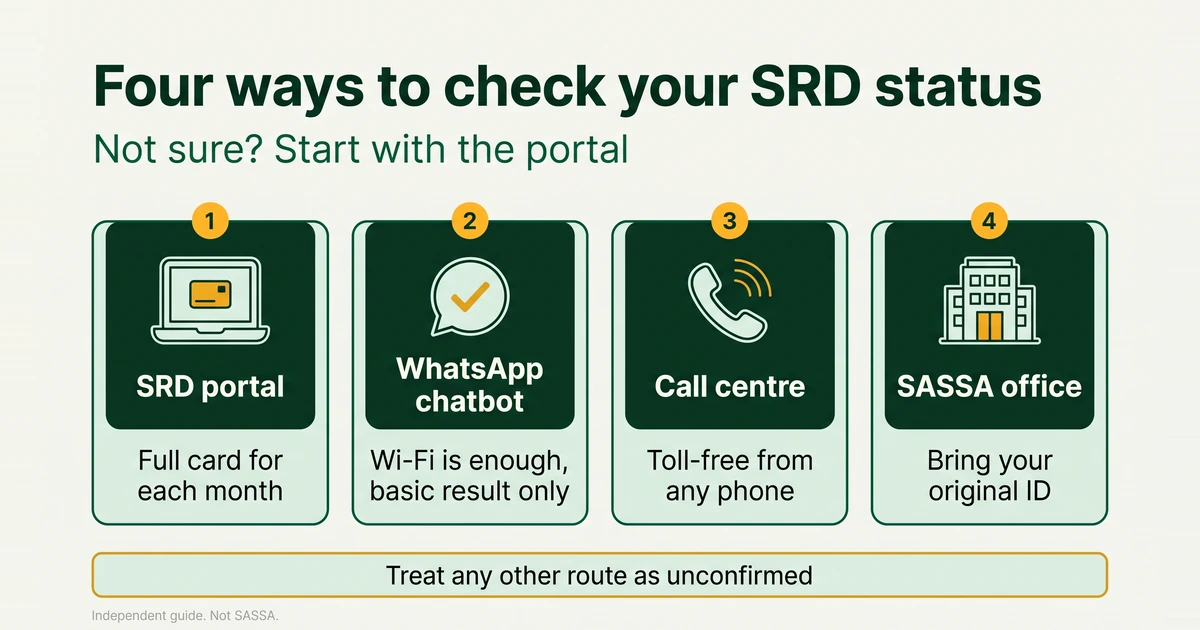
There is more than one way to find out where your SRD application stands, but the routes are not equal. Some appear in SASSA’s own 2026 booklet and can be matched against the official portal. Others get passed around in Facebook and WhatsApp groups, and nobody has published a working instruction for them. This guide puts every route side by side, says which ones we can stand behind, and helps you pick the one that fits your phone, your data and your day.
Whichever route you use, you are after the same thing: the result for one particular month. SRD is reassessed every month, so a result only speaks for the month on its card. If the words on the screen are new to you, our guide to what every SRD status means explains each one.
Every route compared
The table uses only what we can support. Where SASSA has published nothing, the table says so instead of guessing.
| Route | Needs data? | Gives a reason for a decline? | Works without a smartphone? | Safe? |
|---|---|---|---|---|
| Official portal (srd.sassa.gov.za) | Yes, a small amount | Often shows the reason, and the appeal page asks you to pick one | Needs a browser, so a computer, tablet or phone will do | Yes, if you type the address yourself |
| WhatsApp chatbot (082 054 0016) | Wi-Fi or data | Basic result only | No, it needs WhatsApp on a smartphone | Yes, if the number matches the booklet and you never type a PIN or OTP |
| Call centre (0800 60 10 11) | No, the line is toll-free | An agent may be able to explain | Yes, any phone works | Yes, if you dial the number yourself and never give a PIN or OTP |
| SASSA office | No | In person, with your original ID | Yes | Yes, if you find the office through the directory on sassa.gov.za |
| USSD | USSD does not use data, but no code is confirmed | Not confirmed | A code would work on any phone, but none is confirmed | Do not dial a code from a message or a post |
| Moya app | Reported to be zero-rated on some networks, so confirm with your network | Not confirmed | No, it is an app | Install apps only from your phone’s own app store |
| GovChat | Not confirmed | Not confirmed | Not confirmed | Not on the booklet’s channel list, so do not send your ID number to a number from a group |
| SMS | Not confirmed | Not confirmed | Not confirmed | Not on the booklet’s channel list, so treat any “SMS code” with suspicion |
Which method suits you?
Read down the list and stop at the first line that sounds like you.
- You have a phone or computer with internet and a few minutes. Use the official portal. It is the one route we have screenshots for, and it shows a card for every month.
- You have Wi-Fi but no mobile data. Try the WhatsApp chatbot, because WhatsApp can run on Wi-Fi alone. The steps are in our WhatsApp status check guide.
- You have no data and no airtime. Call the toll-free call centre on 0800 60 10 11 from any phone.
- You want to know why a month was declined. Start on the portal. If the reason is unclear, ask the call centre or an office.
- You have no smartphone, laptop or data and need the face check. Go to a SASSA office. SASSA Mpumalanga said on 27 January 2026 that its offices can help with kiosks, an official laptop or guest Wi-Fi. That statement came from one province, so ask your own office what it offers.
- You lost your phone or changed your number. The status check only needs you to type the number you applied with, so it can still work. Appeals, banking changes and number changes send a PIN to that phone. See how to change your SRD phone number and what to do when the OTP does not arrive.
- Someone sent you a code, link or number that is not on this page. Do not use it until you have checked it against the official SASSA links and scam warning.
What you need before you start
Gather these first, so you do not have to begin again halfway through:
- Your 13-digit ID number, typed as it appears on your ID document, with no spaces.
- The 10-digit cellphone number you used on your application. If you have changed numbers since, use the old one for the status check.
- The month you care about. Results are shown one month at a time.
- A way to keep a record, such as a screenshot, or a pen and paper to write down the date, the month and the status.
- For a call or a visit: your ID document and, if you saved it, the application ID shown at the end of your application. Offices need the original ID.
- For appeals, banking changes and number changes: the phone you applied with, switched on and with signal, because a 6-digit PIN arrives by SMS.
The safe way to open the portal
Scammers copy SASSA’s look, and fake SRD sites have been named in public. SAnews named two on 26 February 2025: srd-sassa.org.za and srdsassagov.co.za. Neither is official. The SRD portal is srd.sassa.gov.za, and its status page is srd.sassa.gov.za/sc19/status.
- Type the address into your browser’s address bar yourself.
- Do not open it from a link in an SMS, a WhatsApp message, a social media post or an advert.
- Read the address letter by letter before you type anything. The part that matters ends in .gov.za.
- Expect two boxes: your ID number and your phone number. In our June 2026 screenshots the status page did not ask for a PIN.
- Keep the result private. Do not post a screenshot that shows your ID number.
Step by step on the portal
Here is the portal check on a computer and on a phone. Your screens may look slightly different, because SASSA changes the portal from time to time.
How to check your SRD status online
The quickest way to run an SRD status check online is the official SC19 status page. People who still say r350 status check and people checking the current R370 result use exactly the same page. All you need is your 13-digit South African ID number and the 10-digit cellphone number on your application, and the whole check takes less than a minute.
-
Open the official status page
Type srd.sassa.gov.za/sc19/status into the address bar yourself. The page opens on a yellow SASSA banner with two empty boxes and a grey submit button. Check the address before you type anything.

-
Type your 13-digit ID number
Click the first box, labelled “South African ID number of applicant”, and type all 13 digits without spaces. The counter on the right counts up to 13.

-
Type the phone number you applied with
Use the cellphone number from your application in the second box. It takes 10 digits, and the counter shows how many you have typed.

-
Press submit
Once both boxes are full, the submit button turns yellow. Press it once, then wait a few seconds for the result.

-
Read your result, month by month
Each month appears as its own card, for example “MAY2026 APPROVED”, with the pay day for that month. The newest month is at the top. Match the word you see with the status meanings guide.
-
Open the official status page
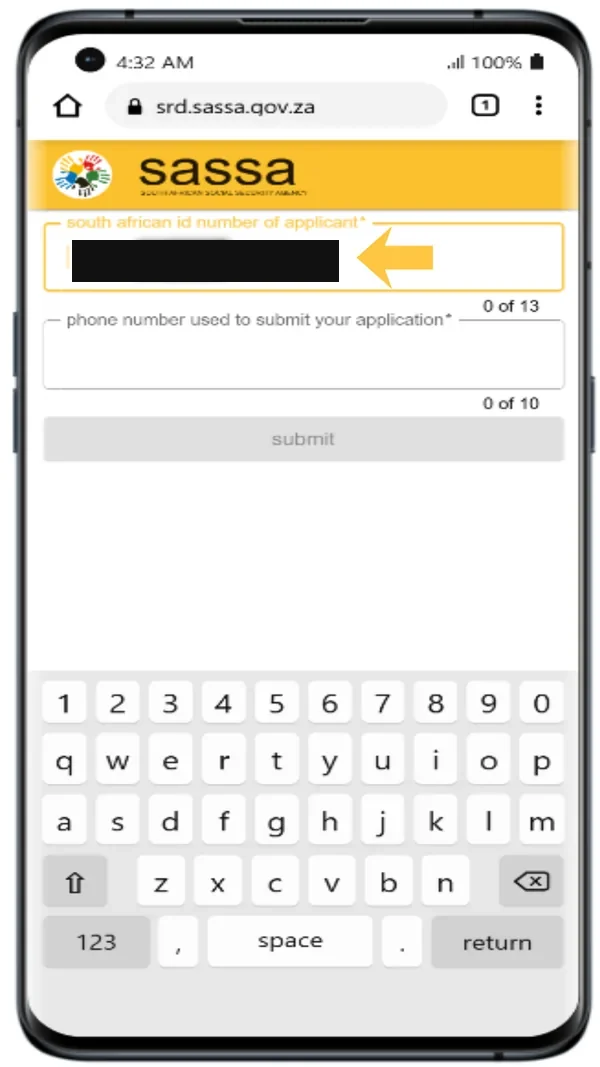
Type srd.sassa.gov.za/sc19/status into your phone browser yourself. Don’t tap a link from a message or an advert. The page opens on a yellow SASSA banner with two empty boxes.

-
Type your 13-digit ID number
Tap the first box and type your ID number. Use all 13 digits and no spaces. The counter shows how far you are.
-
Type the phone number you applied with
Tap the second box and type the 10-digit cellphone number from your application.

-
Tap submit
The submit button turns yellow when both boxes are complete. Tap it once and wait.

-
Scroll through your results
Each month is a card such as “MAY2026 – APPROVED”, with the payment date for that month and the day the application was filed. Scroll down for older months.
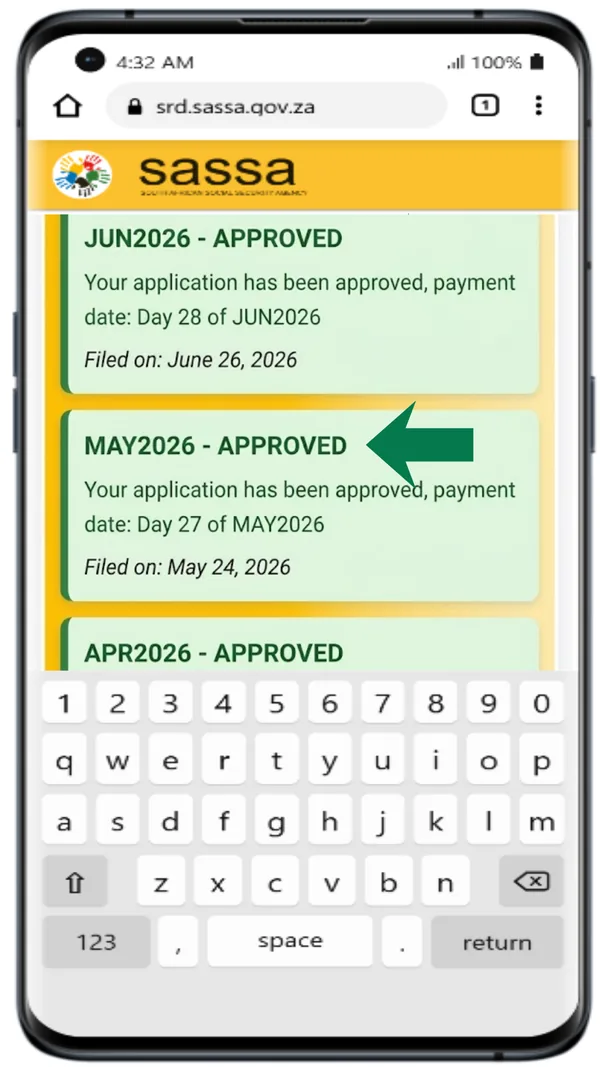
Screenshots taken on the official SRD status page in June 2026. The portal changes from time to time, so your screens may look slightly different.
What to do when the portal is slow or will not load
We know of no official list of busy times, so we cannot name a best hour. These steps help in practice:
- Wait a few minutes before you try again. Pressing refresh again and again does not speed anything up.
- Switch from Wi-Fi to mobile data, or the other way round.
- Close the tab, type the address again and start from the beginning.
- Try another browser, or another phone or computer.
- Write down any error message word for word, so you can describe it if you phone.
- Use another route while you wait, such as the WhatsApp chatbot or the call centre.
Do not pay anyone who offers to “get you through” a busy portal, and do not hand your ID number to a stranger to check for you. A slow portal is an inconvenience, not a reason to take a risk.
When to check, and how often
Each month brings a fresh decision, so the newest card is the one that counts. SASSA publishes no fixed SRD calendar, and your own pay day appears on your status card once a month is approved, so there is no single date we can tell you to check on. Our practical advice is simple: look once early in the month to see how the new card reads, and look again when your pay day is close. If the word is pending, SASSA publishes no official waiting time, so give it some days before you check again. Checking ten times a day will not change the outcome.
Keep a simple record
Whatever route you use, a short record protects you if a month goes wrong. Each time you check, write down or screenshot the month on the card, the status word, the pay day if one is shown, the route you used and the date. If you later have to appeal, phone the call centre or visit an office, that record lets you describe exactly what happened without relying on memory. Crop out your ID number before you share a screenshot with anyone, including family, and keep your application ID in the same place as the record.
Common mistakes that waste a check
- Typing the ID number with a space, or with a digit missing.
- Using the number you have today instead of the one on your application.
- Reading an old month’s card and assuming it speaks for this month.
- Trusting a result from an unfamiliar site because it looked official.
- Letting a stranger “help” you, or checking for someone without their permission.
- Reapplying because a check failed. A failed check is usually about what was typed, not about the application, so read what a failed status check means first.
The routes one by one
The official portal
This is the route most people should use. It shows a card per month, with a pay day on approved months, and it is also where you appeal, change banking details and change your phone number. Our portal login and website help guide covers the problems people hit on the site itself. People who still search for “r350 status check” or “370 status check” are using the same page, as our R350 explainer and R370 guide show.
The WhatsApp chatbot
SASSA’s 2026 booklet gives 082 054 0016. An April 2025 SAnews report printed a different number, 082 046 8553, so use the booklet number and see our WhatsApp number guide for the dating. The chatbot suits people on Wi-Fi, but it gives a basic result only. Full steps are in how to check SASSA status on WhatsApp.
The call centre
The toll-free number is 0800 60 10 11. It runs in weekday working hours, and we do not print exact hours, so confirm them on sassa.gov.za. Have your ID number and your application phone number in front of you. Afterwards, write down the date, the time, the name of the agent and any reference number, because that note saves time if you have to call again. Other verified contacts are in our SASSA contact numbers guide.
A SASSA office
Keep an office visit for problems the portal and the phone cannot fix, such as the face check or a stubborn identity mismatch. Bring your original ID. Use the directory on sassa.gov.za, or our guide to finding SASSA offices near you, to find the right one.
USSD
SASSA has not published a code we could confirm. We will add one only after testing it. If you find a code in a post or a message, do not dial it. Our USSD guide is where any confirmed code will appear, with the date it was tested.
The Moya app
Moya is reported to be zero-rated on some networks. Confirm with your network before you count on it, and remember that it needs a smartphone. We have not confirmed which SRD services it offers today, so check any result against the portal. More in our Moya app guide.
GovChat and SMS
SASSA’s 2026 booklet does not list GovChat or SMS as channels. We do not call them working and we do not call them closed. Treat both as unconfirmed, and read the GovChat and SMS guide before you send your details anywhere.
After the result: where to go next
Your next step depends on the word you saw:
- To read the result in plain language, use the status meanings guide.
- To find out whether the money arrived, see how to check your SRD balance.
- To find your pay day, see the SRD payment dates guide.
- If the status is approved but nothing arrived, see SRD approved but no payment.
- If a month was declined and you think it is wrong, see how to appeal.
- If the status says cancelled and you did not cancel, see cancelling an SRD application.
What no method can do
None of these routes can approve an application, speed one up or reopen a closed one, and neither can this site. Anyone who offers to unblock your grant for a fee, or to move you up the queue, is a scammer. Never pay for a status check, and never share your PIN or OTP. If you suspect fraud, report it on the anti-fraud line, 0800 701 701.